Posts

Showing posts with the label EC2

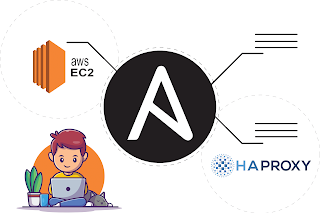
ANSIBLE: Haproxy Configuration over AWS using Ansible
Image
  CONFIGURATION OF HAPROXY  USING ANSIBLE OVER AWS Lets configure Reverse Proxy that is  Haproxy  using ansible Playbook. Check this blog to know more about Haproxy :  ANSIBLE : Configuration of Haproxy As every server has a hard coded limit . At one point in time, only limited clients can connect to the web server. If more clients try to connect, the will get some error. That's why we are using  Load Balancer.  Here we want to achieve  high availability  and  extra security  for our web server using haproxy. But the problem is that, if we need to add more servers, we can add them by adding their IP in inventory file and run the playbook. But  how Load balancer will come to know that more servers have been added???? For this we will have to manually update the configuration file of Haproxy. And manually updating is not good as we are using ansible. So the solution is, we can use  JINJA  language to write code in ...

WordPress on the top of EC2 instance and AWS RDS

Image
There are few steps you need to follow to Launch WordPress on the top of AWS EC2 instance and AWS RDS for databases :  1. Create an AWS EC2 instance   2.  Configure the instance with Apache Webserver.   3. Install php  4.  Download php application name "WordPress".  5.  Setup a MySQL server using AWS RDS service.  6.  Provide the endpoint/connection string to the WordPress application. 1.  Launch EC2 instance : So first we need to launch EC2 instance and in that instance we will configure our webserver. For this, to check how to launch instance in AWS step by step, go through my this blog: AWS - Create EBS, Launch instance and attach 2.  Configure the instance with Apache Webserver : Install apache web server using this command :  yum install httpd 3. Install php :   Because WordPress is a website written in php, we need to install php. And for this we need to install php version 7.4 that is compatible ...

Create High Availability Architecture With AWS CLI

Image
 Architecture of website that gives high speed, low latency, guaranteed  data availability and durability to the client. Doing practical is so simple but designing it/ architect it for proper use case is not that much easy. You should know everything. To create this architect on AWS CLI, we need some simple steps: 1 - Launch ec2 instance We've launched an ec2 instance, Amazon Linux 2 AMI in ap-south-1a 2 - Create an EBS Volume so we've created an EBS Volume of 1GiB in ap-south-1a as region of instance and EBS volume should be same. 3 - Attach volume to the instance Done! 4 - Install Apache web server in our instance Here we can see that httpd is installed.  5 - Create partition in EBS Block Device and mount with Document Root.  By this, we made our document root persistent. We won't loose our data and code if root device corrupts. 6 - Create S3 Bucket Bucket created!! 7 - Copy the file/image to the bucket As we all know about the durability and accessibility of data ...

AWS - Create EBS, Launch instance and attach

Image
To Launch an instance in AWS, and create EBS and attach it to the instance, you can follow these steps : STEP 1 : Create a key pair in AWS. In AWS console, in EC2 service, you can create your key pair as shown in picture below: Enter the key pair name, choose putty if you want to ppk,  enter the desired tag and create. key will be saved in your system too. STEP 2 : Create a security group In EC2 service, you can add security group. Click on Create security group to create a security group. add security group name and description. in inbound rule type, for now you can allow all traffics. then create. STEP 3 : Launch an instance using above key pair and security group. to launch an instance, go to EC2 service in your aws account. Click on launch instance. Select Amazon Linux or any other instance under free tier so that you won't be charged by aws. In step 2 : choose instance type - t2 micro. As its only instance eligible under free tier. Then configure instance details. In subnet ch...